Tuesday, April 15, 2014

Using SharePoint CSOM to access a list's information using folder/internal name

Been quite some time since I posted anything but I could not find any place on the net that talked about getting a SharePoint list using the CSOM and the lists internal/folder name.   I finally came up with this kludge using the SPService, but basicly what I am doing is searching the default view URL for the list folder name.

The reason I needed to do this was I had a client request to setup alerts form one list that had URLS that pointed to another list. The alerts really needed to be on the referenced list and not what the user was currently selecting in the list view.

$().SPServices({
    operation: "GetListCollection",
    async: false,
    completefunc: function (xData, Status) {
        $(xData.responseXML).find("List").each(function() {
            if ($(this).attr("DefaultViewUrl").indexOf(listInternalName) >= 0) {
                 listName = $(this).attr("Title");
                 listId = $(this).attr("ID");
            }
        });
    }
});


Hope someone else finds this useful.

Thursday, June 7, 2012

Enabling in browser support for PDF


A very old post I forgot to publish about enabling SharePoint browser support of PDF


If you have a default SharePoint 2010 setup you would notice that when you go to open a Pdf file SharePoint prompts you to save it rather than opening.

The cause of this behavior is SharePoint 2010 Browser File Handling. This property is on SharePoint Web Application level and its value determines how files are treated in the browser. “Strict” specifies that MIME content types which are not listed in “AllowedInlineDownloadedMimeTypes” are forced to be downloaded. “Permissive” specifies that the HTML and other content types which might contain script are allowed to be displayed directly in the browser. Source: http://msdn.microsoft.com/en-us/library/microsoft.sharepoint.administration.spwebapplication.browserfilehandling.aspx


“AllowedInlineDownloadedMimeTypes” is a collection of MIME types. This list of MIME types does not contain MIME type of Pdf documents by default. It is important to understand that by adding Pdf MIME type to IIS settings you will not solve this issue.

Solution #1 (via User Interface):

The solution is to change Browser File Handling property on Web Application level. For that you need to be a Farm Administrator. Steps to change Browser File Handling property:

  • Go to SharePoint 2010 Central Administration > Application Management > Manage Web Applications
  • Select the row of your web application
  • Click General Settings in the ribbon
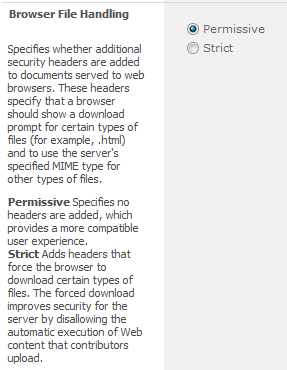
  • Scroll down to Browser File Handling and select Permissive
part1-screen2.png
  • Click Ok

Now, your Pdf document will be opened in the browser.

By default, option is set to Strict when creating a web application. When set to Strict, a Pdf document (and other file types) can only be Saved (downloaded), but in Permissive mode, the Pdf document can be opened in the browser by default (this is a setting you can change. See Document Library Settings -> Open in the Client).


Limitation #1:
Once you enabled “Permissive” Browser File Handling, SharePoint will allow all documents be opened in the browser. Today, there is no “out-of-the-box” option to allow Permissive option for Pdf documents only.

Monday, May 7, 2012

Migrate SharePoint 2010 My Sites from default Web Application

Recently I had a client that had setup their "My Sites" in the same web application as their default intranet and wanted to move them to a new web application.
I found several posts on how to exporting my sites like this one and migrating My Sites to a new Content Database but none that actually tacked the issue of moving to a new Web Application.
Well this turned out to be easier than I thought.

  1. Migrate the "My Sites" content to a new content database.
    $db = Get-SPContentDatabase WSS_Content
    Get-SPSite http://portal/personal/* -Limit ALL | where { $_.ContentDatabase -eq $db }
    Get-SPSite http://portal/personal/* -Limit ALL | where { $_.ContentDatabase -eq $db } | Move-SPSite -DestinationDatabase WSS_Content_My_Sites -Confirm:$false
    
  2. Remove this new content database from the current Web Application.
    In Central Admin -> Application Management -> Manage content databases. Select Content DB, in my case WSS_Content_My_Sites and select Remove content database


  3. Create a new Web Application to house the My Sites.
    Central Admin -> Application Management -> Managed web applications -> Select New from the ribbon.  There is no need to create a new site collection since we are going to drop the content database that will be created.
  4. Re-attach the content database previously removed to this new Web Application
    Central Admin -> Application Management -> Manage content databases.
    Make sure you select the correct Web Application and use the correct database name.

  5. Set the Self-Service Site Creation for the new My Site Web Application.
    Central Admin-> Application Manager -> Manage web application -> select site then Self-Service Site Creation in ribbon
  6. Update links in SharePoint to create new "My Sites" in this new location.
    Central Admin -> Application Management -> Manage service applications
    Select User Profile Service then Manage in the ribbon
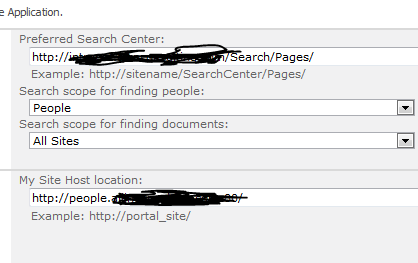
    Under My Site Settings -> Setup My Sites -> update My Site Host location
  7. Remove the content database that was created with the new "My Site" Web Application

Wednesday, January 11, 2012

How to get a SharePoint person field's email adress

This week I had the need to access the email address of a user that was in a person field of a SharePoint list.

Well I incorrectly assumed that this was some flavor of  a SPUser object, turns out the person field in a SPList is a special type SPFieldUser.

Well lets cut to the chase this is the code to access the email address of a SPListItem person column;


private bool EmailUser(SPListItem spListItem, string recordColumn, string subject, string message)
        {
            SPFieldUser spFieldUser = (SPFieldUser)spListItem.Fields[recordColumn];
            SPFieldUserValue spFieldUserValue = (SPFieldUserValue)spFieldUser.GetFieldValue(
                                                    spListItem[recordColumn].ToString());
            if (string.IsNullOrEmpty(spFieldUserValue.User.Email) == false)
                return SPUtility.SendEmail(spListItem.Web, false, false, spFieldUserValue.User.Email, subject, message);
            else
                LogWrite("Error", string.Format("Send Email Error Message")
                                                ,spFieldUserValue.User.Name));
            return false;
        }

Friday, October 28, 2011

How to change the view used by XsltListViewWebPart

So I was in a situation that I needed to change what view was being displayed on a page dynamically.
I am using the the XsltListViewWebPart to display all the values of a list to the user and depending on the user and different properties of the list items I needed to filter the view as well as assign a different XSL file.

The biggest problem I had was that the list view GUID  is created only at deploy time and I could find no other way to assign a different view.

I came across several posts that had examples of changing the view or adding a new XLVWP to the page at deploy time
http://sharepoint.stackexchange.com/questions/4843/reusing-the-xsltlistviewwebpart and http://social.technet.microsoft.com/Forums/zh/sharepoint2010programming/thread/983d2098-d742-4708-8bdc-437aa07b3b9d

So I wanted to take this a little further and be able to dictate what view was used on the fly.  Using a QueryString of the ListID and the ListViewName I then assign the appropriate view in the OnInit event as shown below.


public partial class RecordHistory : DialogLayoutsPageBase
{
     protected void Page_Load(object sender, EventArgs e)
     {
     }
     protected override void OnInit(EventArgs e)
     {
         base.OnInit(e);
         string[] strLists = Request.QueryString.GetValues("ListID");
         string[] strListViewName = Request.QueryString.GetValues("ListViewName");

         if (strLists == null || strLists.Length < 1)
         {
             throw new SPException(SPResource.GetString(Strings.MissingRequiredQueryString, "ListID"));
         }
         SPList spList = SPControl.GetContextWeb(Context).Lists.GetList(new Guid(strLists[0]), true);
         SPView view = spList.Views[strListViewName[0]];
         this.xlvwpRecordHistory.ViewGuid = view.ID.ToString();
         this.xlvwpRecordHistory.ViewId = int.Parse(view.BaseViewID);
         this.xlvwpRecordHistory.XmlDefinition = view.GetViewXml();
     }
}

As always there are many ways to do this that might be better but this worked and I found no other examples of this on the web.
Please let me know if you have a better idea

Monday, June 6, 2011

Basic steps for Moving a SharePoint site collection between domains

Before you start
Make sure SharePoint versions are the same on source and destination servers, service packs and patches.

Permissions
There are some basic permissions that need to be configured (if they have not already).
See Add-SPShellAdmin. If you are using Windows authentication to connect to SQL Server, the user account must also be a member the SQL Server dbcreator fixed server role on the SQL Server instance where the database will be created. If you are using SQL authentication to connect to SQL Server, the SQL authentication account that you specify when you create the content database must have dbcreator permission on the SQL Server instance where the database will be created.

Add-SPShellAdmin -UserName Domain\User Name

Migrate Data
Backup Site Collection on Farm A.
On the server farm that contains the original site collection open a SharePoint 2010 Management Shell.
In the power shell window type the following command:
Backup-SPSite –Identity http://FarmASiteCollection -Path TempPathAndFileName.bak -Force
Force will overwrite a previously backup file.

Create Content Database on Farm B.
Assuming the appropriate Web Application already exists then you just need to create a new content database.
On the server for farm B open a SharePoint 2010 Management Shell.
In the power shell window type the following command:
New-SPContentDatabase -Name ContentDbName -WebApplication WebApplicationName
 -
DatabaseServer DBServerName

Restoring Site Collection on Farm B.
In the power shell window type the following command:
Restore-SPSite –Identity FarmBSiteCollection -Path TempPathAndFileName.bak
-DatabaseServer DBServerName -DatabaseName ContentDbName

Restore Access/Permissions
You need to add a user via command line because the restored site will deny all of your login attempts (unless your server is on the same domain as the original source server).

Using the central administration console, you will note that the site collection still references the original administrators which are now invalid on this new domain.
NOTE: you can view using following steps >> Central Administration >> Application Management >> Site Collection Administrators (on Farm B SharePoint central administration domain).

·         Now you need to change ownership of the site collection using following command.
Set-SPSite –Identity FarmBSiteCollection -OwnerAlias “domain/User”
·         Now if you refresh central admin console you will see the new administrator as an owner, you can change the secondary administrator at this point as well using same utility.
Set-SPSite –Identity FarmBSiteCollection - SecondaryOwnerAlias “domain/User”
·         Now reset the IIS and you can login the main site collection as an administrator.
·         Then you can optionally run this to clean up the old lingering logins explicitly
Move-SPUser –Identity olddomain\UserName  - NewAlias newdomain\UserName

Wednesday, May 18, 2011

BitCoins???? Fascinating concept.

Came across this article not sure I understand all the concept but what an idea.
Is this really going to take off or just die a slow death like many cool concept?